Meeting Function
What is the Meeting Function?
The Meeting Function is a feature that automatically generates an agenda from the previous meeting to the day of the meeting and allows you to save notes. You can also adjust the schedule of the meeting.
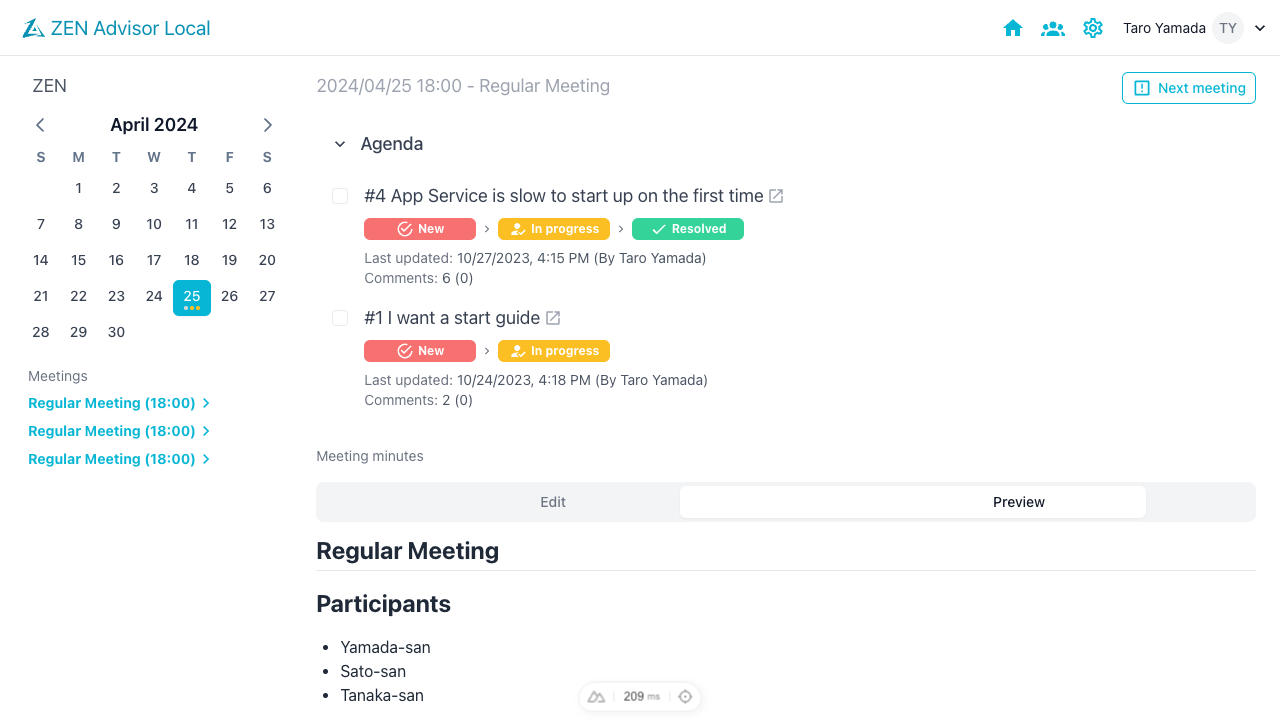
You can share agenda details and meeting notes in real-time, allowing the responsible party and the customer to efficiently manage requests, review previous issues and progress, and update information on the spot.
- Click the (Meeting icon) in the navigation bar to go to the meeting function screen.

Calendar Function and Adding Meetings
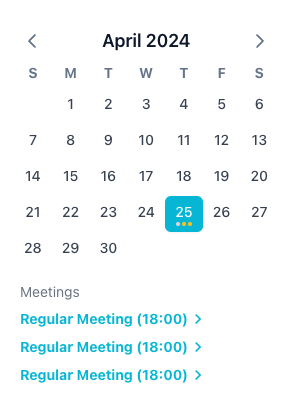
You can check the schedule of the meeting.
- Only the responsible person for the meeting can add or modify meetings. Please contact the responsible person if you want to add or modify.
- The calendar displays a mark () on days when meetings are scheduled.
- Clicking on a date in the calendar displays the date and title (optional) in a list. Canceled meetings are grayed out.
- Clicking on a meeting in the list displays the details of the meeting and the reason for cancellation.
Agenda
You can check the progress, status, and last update date of requests from the previous meeting to the day of the meeting. Clicking on the request title allows you to add or view the timeline.
Timeline and Service Request Management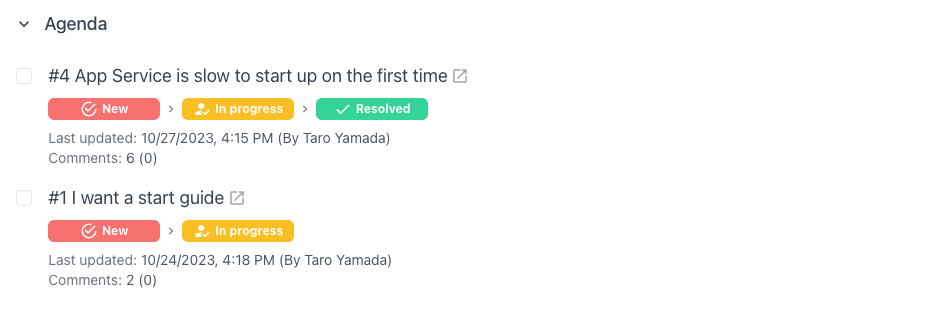
Meeting Minutes
- You can save meeting URLs to share before the online meeting, as well as meeting minutes and notes during the meeting.
Past notes can be edited even after the meeting is over. - The input content is reflected in real-time to users who have opened the meeting page.
- You can input using Markdown.
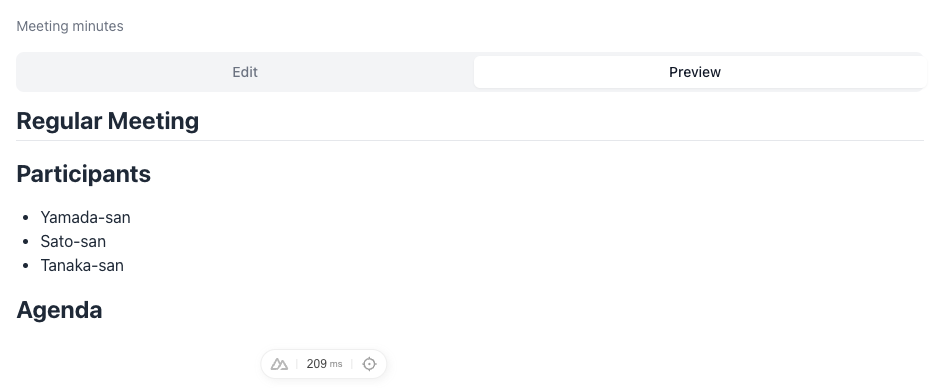
- The text is updated in real-time as you type.
When multiple minutes are updated at the same time
If multiple participants update the minutes at the same time, conflicts may occur.
The content entered by the participant who entered first takes precedence, and if the save is not reflected, a button called "Discard Changes" will appear in that participant's meeting minutes.
Clicking the button will discard the input content and update it to the latest input content.
If you do not want to discard the content, please copy it before clicking the button and paste it when no other participants are entering.
The discarded content cannot be restored, so please try to avoid multiple simultaneous inputs.
Next Meeting
Go to the next meeting.
If there is an agenda for the next meeting, it will be displayed, and it can be used as preparation for the meeting.
